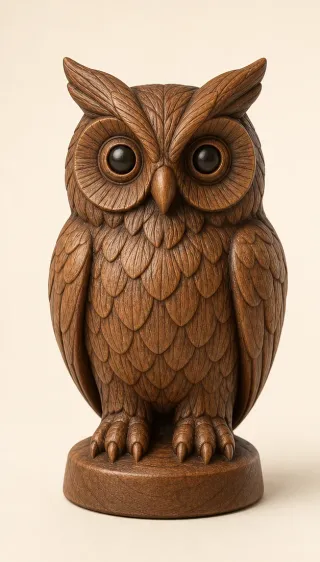
Owl character figurine
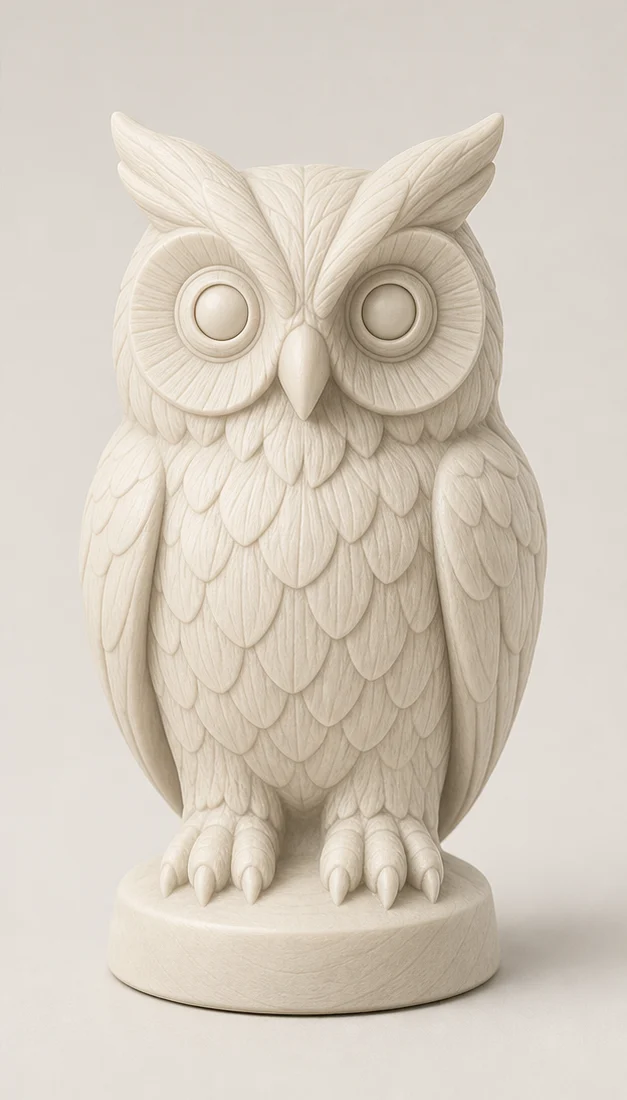
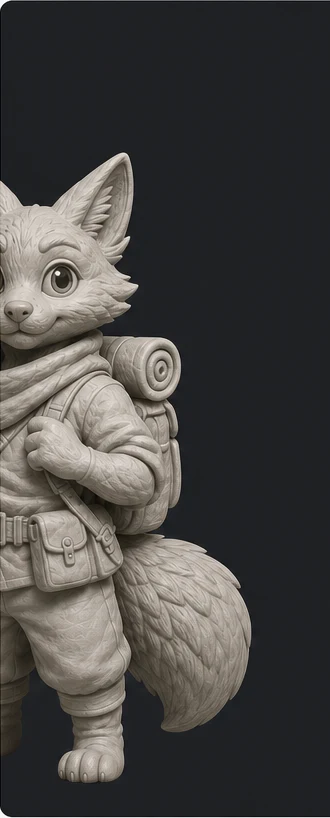
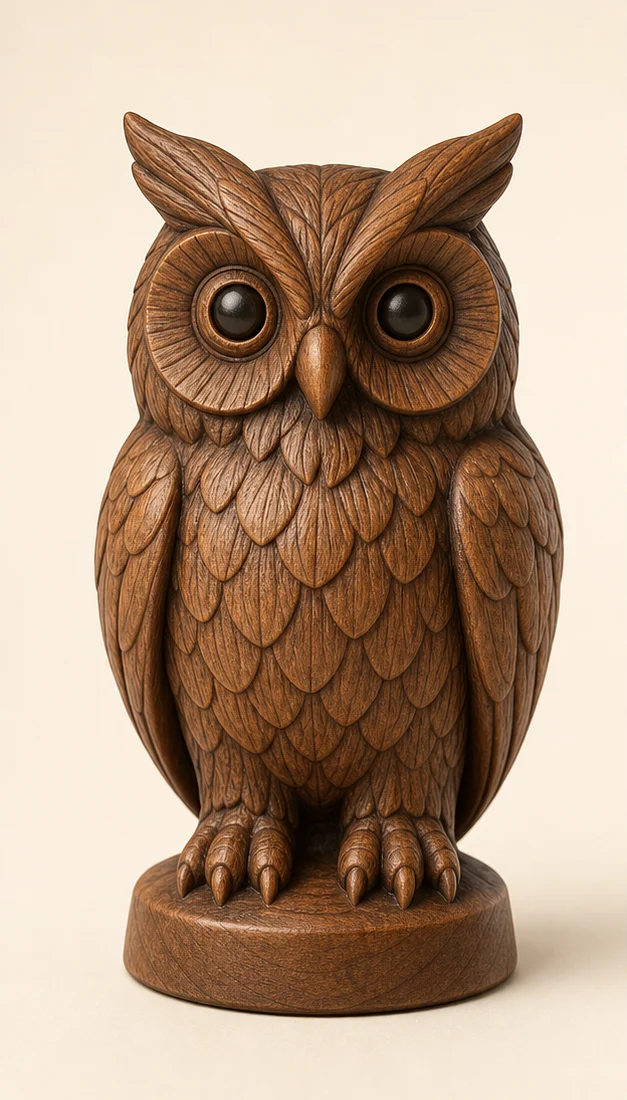
A clear front-facing character image becomes a complete 3D owl with reconstructed depth, wings, feet, and a stable display base.
Best for
Figurines · Tabletop pieces · Display objects
Loading the 3D model…
Turn JPG, PNG, or WebP images into complete 3D models—not flat reliefs—and download them as STL files without learning CAD.
Upload up to five clear views, inspect the generated shape from every angle, and download your STL for editing and print preparation.

owl-reference.webp
1 of 5
Front viewExample loadedOptional side or back images can improve the 3D shape.
This generation uses 25 credits.
Loading the 3D model…
This lightweight preview loads faster. Open the full-detail model to inspect finer surface details.
AI reconstructs sides and details your images do not show, so the result is not a precision scan. Before 3D printing, check the STL for scale, wall thickness, supports, orientation, and your printer’s requirements.
Compare each source image with a rotatable 3D result to see how characters, product photos, and concept renders become geometry for STL export.
A clear front-facing character image becomes a complete 3D owl with reconstructed depth, wings, feet, and a stable display base.
Best for
Figurines · Tabletop pieces · Display objects
Loading the 3D model…

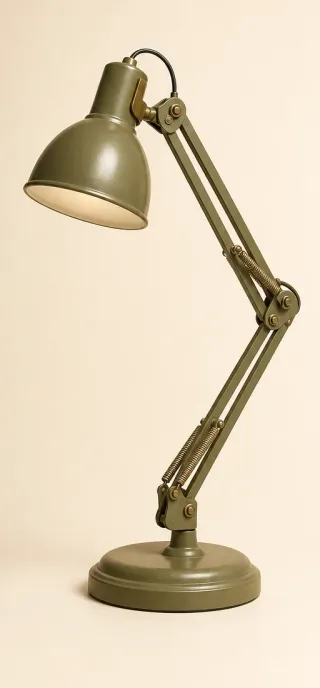
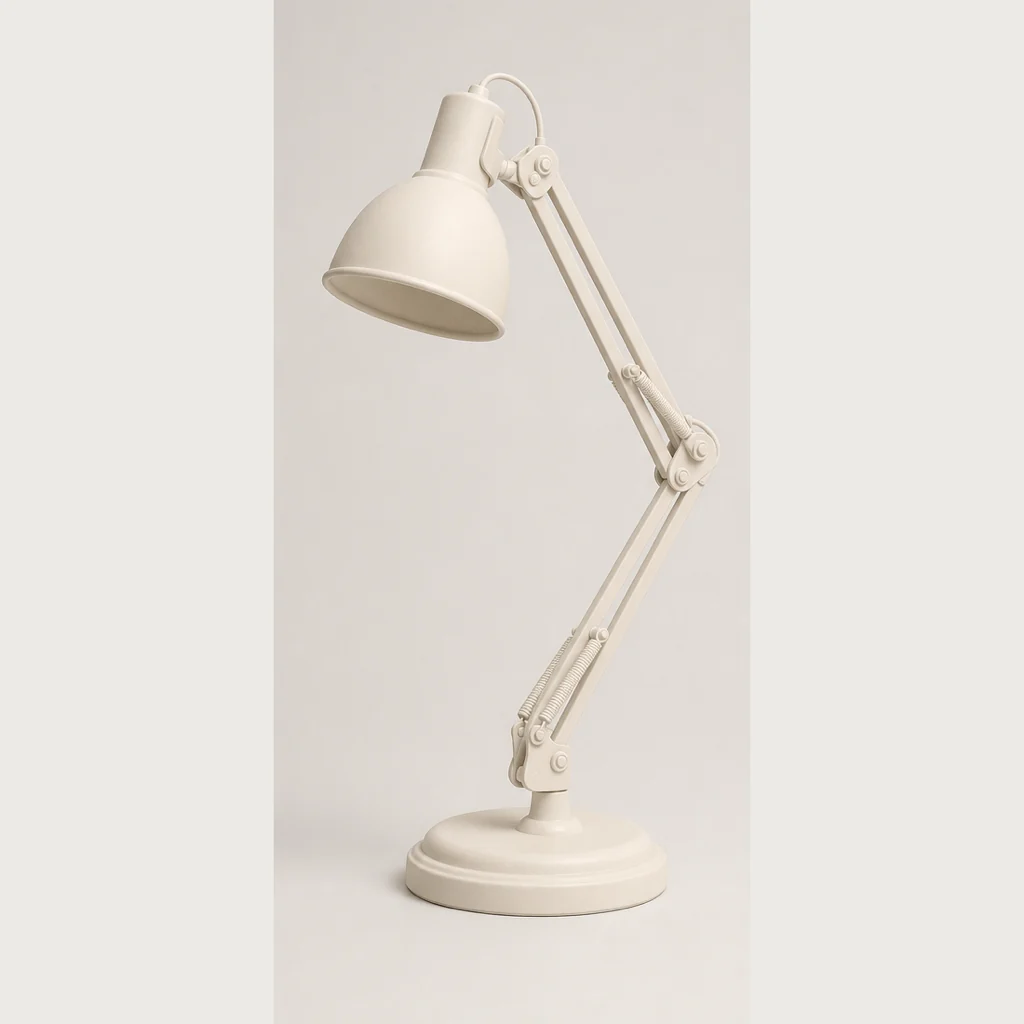
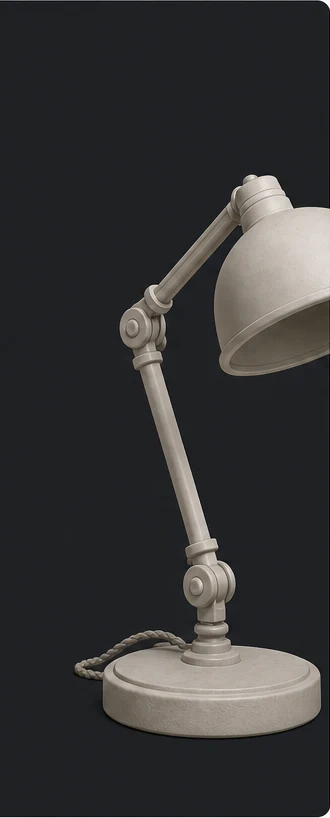
A clean product photograph becomes a complete lamp-shaped 3D starting point with the shade, articulated arm, joints, and weighted base represented.
Best for
Props · Product concepts · Decorative objects
Loading the 3D model…

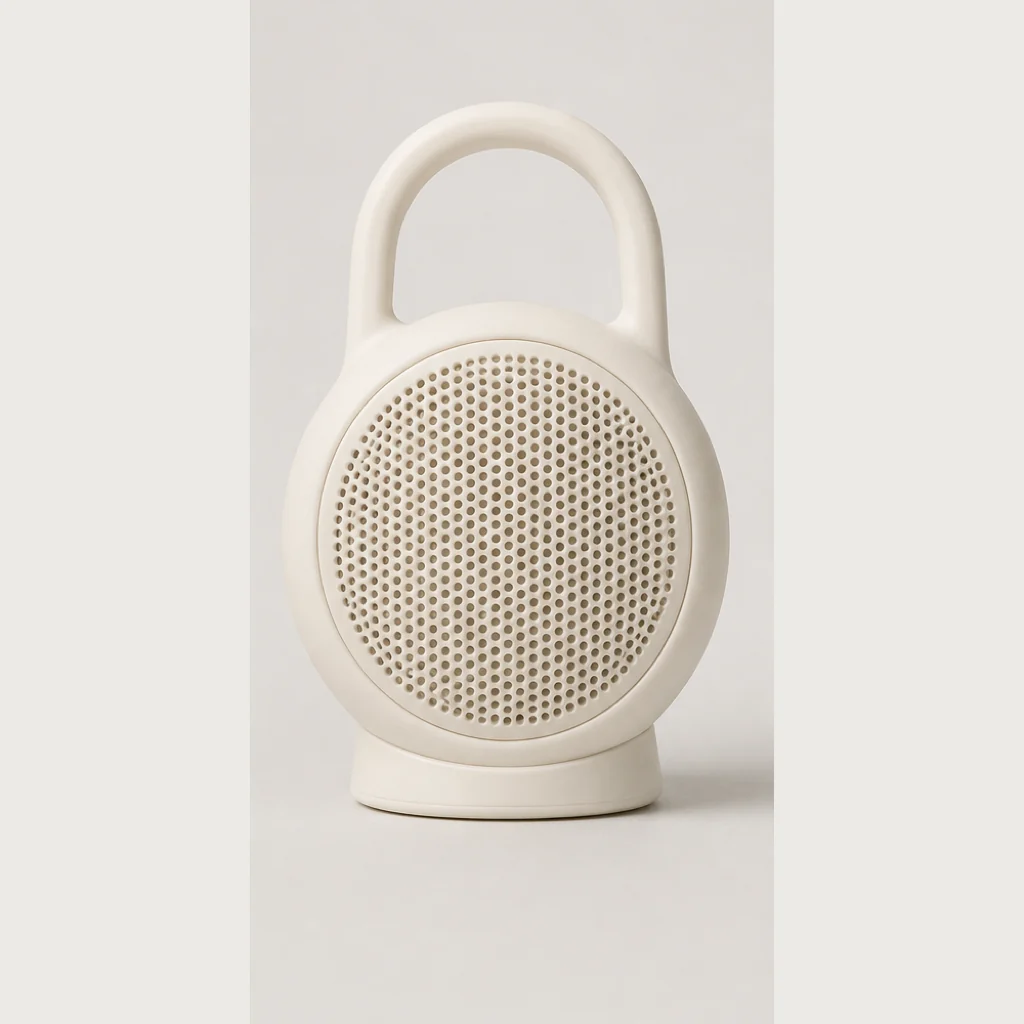
A simple product render becomes an inspectable three-dimensional speaker form for reviewing silhouette, proportions, and spatial presence.
Best for
Concept review · Form exploration · Early prototypes
Loading the 3D model…

These are representative demo results, not precision scans. Generated geometry should be inspected and prepared before 3D printing.
See the reconstructed 3D shape before download, receive STL as the output, and understand where AI has estimated unseen geometry.
You receive a downloadable STL for editing and print preparation—not only an on-screen preview.
The workflow is designed for people who want a practical 3D starting point without navigating a full CAD workspace.
Open the downloaded geometry in your preferred slicer or 3D editing tool for further checks and preparation.
Upload references, choose a quality level, inspect the result, and download without navigating a full modeling workspace.
Rotate and zoom the generated object before deciding whether its shape fits your project.
Unseen sides are estimated rather than scanned, and every STL still needs project-specific print preparation.
HOW IT WORKS
Upload up to five reference images, generate a complete 3D model, inspect the result, and download the STL for editing and print preparation.
Start with one well-lit front view; add side or back views when they reveal useful shape details.
AI reconstructs a complete 3D shape and estimates the sides your reference images cannot show.
Rotate and inspect the generated model, then download the STL for editing, slicing, and print preparation.
Standard uses 25 credits for most objects; High detail uses 50 credits when finer surfaces matter. The exact cost appears before generation.
Every charge and refund stays visible in your account.
Know the credits before you start
Review the exact credit cost before a generation begins.
Choose the detail your model needs
Use Standard for most models or High detail for finer surfaces.
Credits returned automatically
Try again without paying for an unfinished result.
Choose the quality that fits each model—you stay in control of the cost.
Answers about supported images, multiple views, STL output, generation credits, and preparing generated models for 3D printing.
Use a clear JPG, PNG, or WebP image with one fully visible object, even lighting, and a simple background. Avoid blur, heavy cropping, and overlapping objects that hide the subject’s shape.
AI creates the sides that are not visible in the reference image, so the result may differ from the original object.
Upload one to five clear reference images, inspect the generated shape from every angle, and download the STL for editing and print preparation.
No CAD experience required · Preview before download · STL for editing and print preparation